Slack notifications
Configure Slack to receive instant notifications about your PostgreSQL backup status. Get alerts for successful backups, failures and warnings directly in your Slack channels.
Create a Slack App
1. Go to Slack API
Navigate to https://api.slack.com/apps and sign in to your Slack workspace.
2. Create New App
Click on "Create New App" button.
3. Choose "From scratch"
Select "From scratch" option when prompted.
4. Name your app
Enter a name for your app (e.g., "Databasus Notifications") and select the workspace where you want to install it. Click "Create App".
Configure Bot Permissions
5. Navigate to OAuth & Permissions
In the left sidebar, click on "OAuth & Permissions".
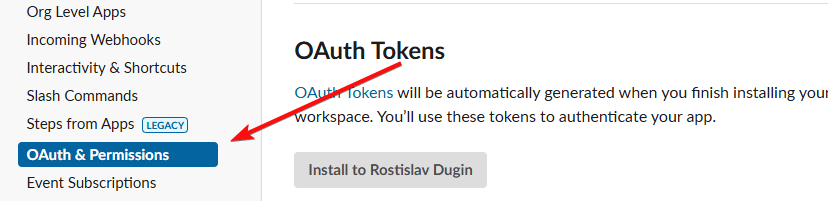
6. Add Bot Token Scopes (Required)
Scroll down to the "Scopes" section and under "Bot Token Scopes", click "Add an OAuth Scope".
Add all of the following required scopes:
chat:write- to send messages to channelschannels:join- to allow the bot to join public channels automaticallyim:write- to send direct messages to usersgroups:write- to send messages to private channelschannels:history- to read channel history
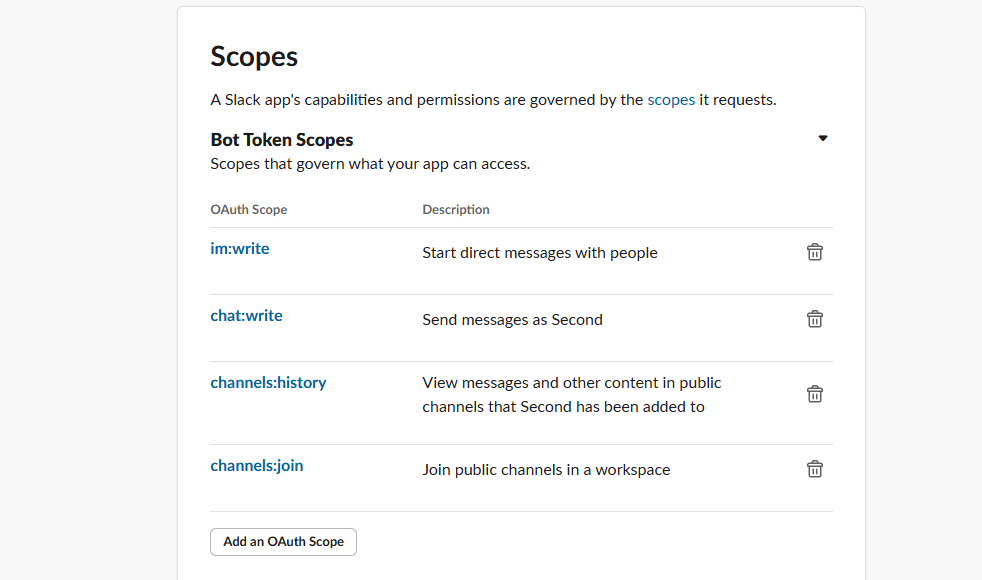
Install App to Workspace
7. Install to Workspace
Scroll to the top of the "OAuth & Permissions" page and click "Install to Workspace".
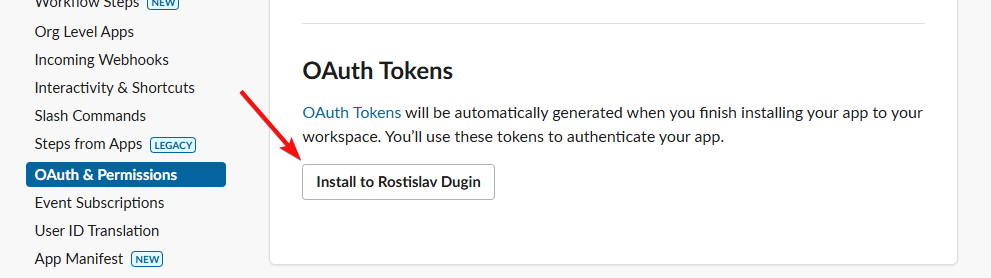
8. Authorize the app
Review the permissions and click "Allow" to authorize the app.
9. Copy Bot User OAuth Token
After installation, you'll see the "Bot User OAuth Token". It starts with xoxb-. Copy this token - you'll need it for Databasus configuration.
Get Channel ID
10. Open your target channel
In your Slack workspace, open the channel where you want to receive backup notifications.
11. Get the channel ID
Click on the channel name at the top, then scroll down in the channel details. You'll find the Channel ID at the bottom of the "About" section. It starts with C (for public channels) or G (for private channels).
Copy this Channel ID.
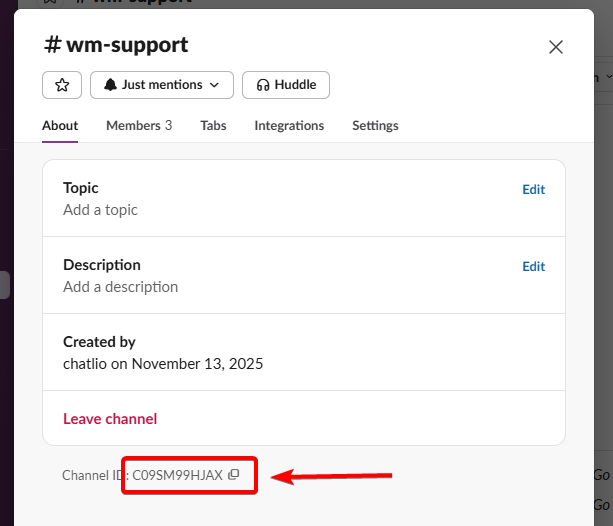
12. Add bot to channel (required for private channels)
If you're using a private channel, you must manually invite the bot to the channel:
- In the private channel, type
@Databasus Notifications(or whatever name you gave your app) - Click on the bot name when it appears and select "Add to Channel" or "Invite to Channel"
For public channels, the bot will automatically join when sending the first message (thanks to the channels:join permission), so this step is not necessary.
Configure in Databasus
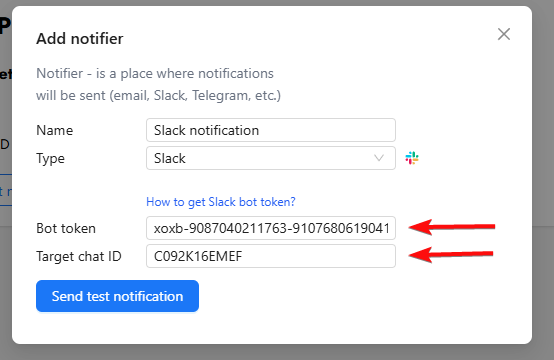
13. Add Slack notifier
In Databasus, navigate to the notifiers settings and add a new Slack notifier:
- Bot Token: Paste the Bot User OAuth Token you copied (starts with
xoxb-) - Target Channel ID: Paste the Channel ID you copied (starts with
C,G,D, orU)
14. Test the notification
After configuring the notifier, test it to ensure it's working correctly. You should receive a test message in your selected Slack channel.
That's it! Your Slack workspace is now configured to receive PostgreSQL backup notifications from Databasus.