How to backup Neon PostgreSQL
Neon is a serverless managed PostgreSQL. To back it up with Databasus, copy the connection string from the Neon console, add the database in Databasus with the Neon type and choose where to store the backups. Databasus then backs it up on your schedule and can restore the backups into any Neon database.
All you need is a running Databasus. If you don't have one yet, follow the installation guide. You can create a storage and notifiers along the way, right in the setup wizard.
Step 1. Copy the connection string from Neon
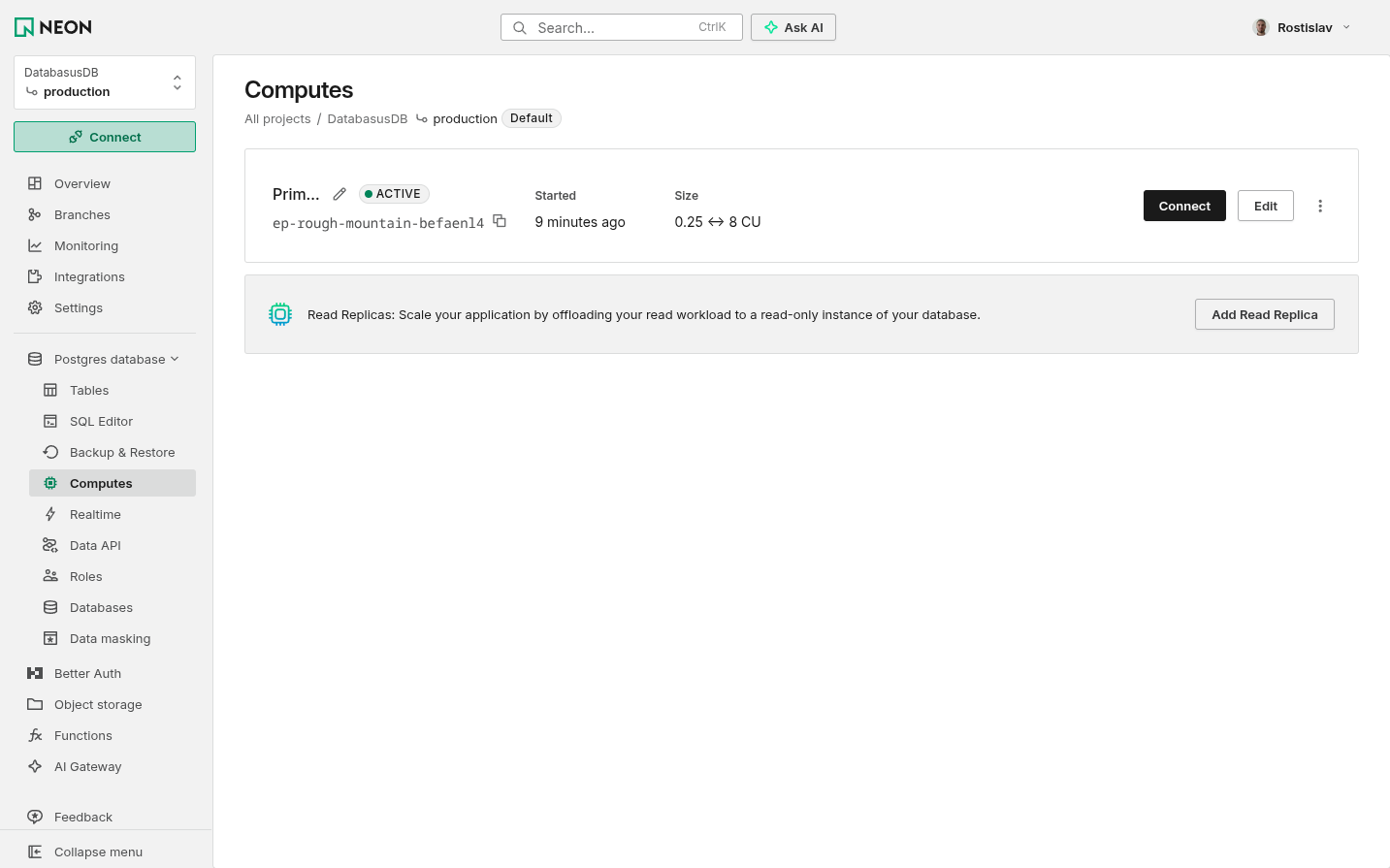
Open your project in the Neon console and click Connect.
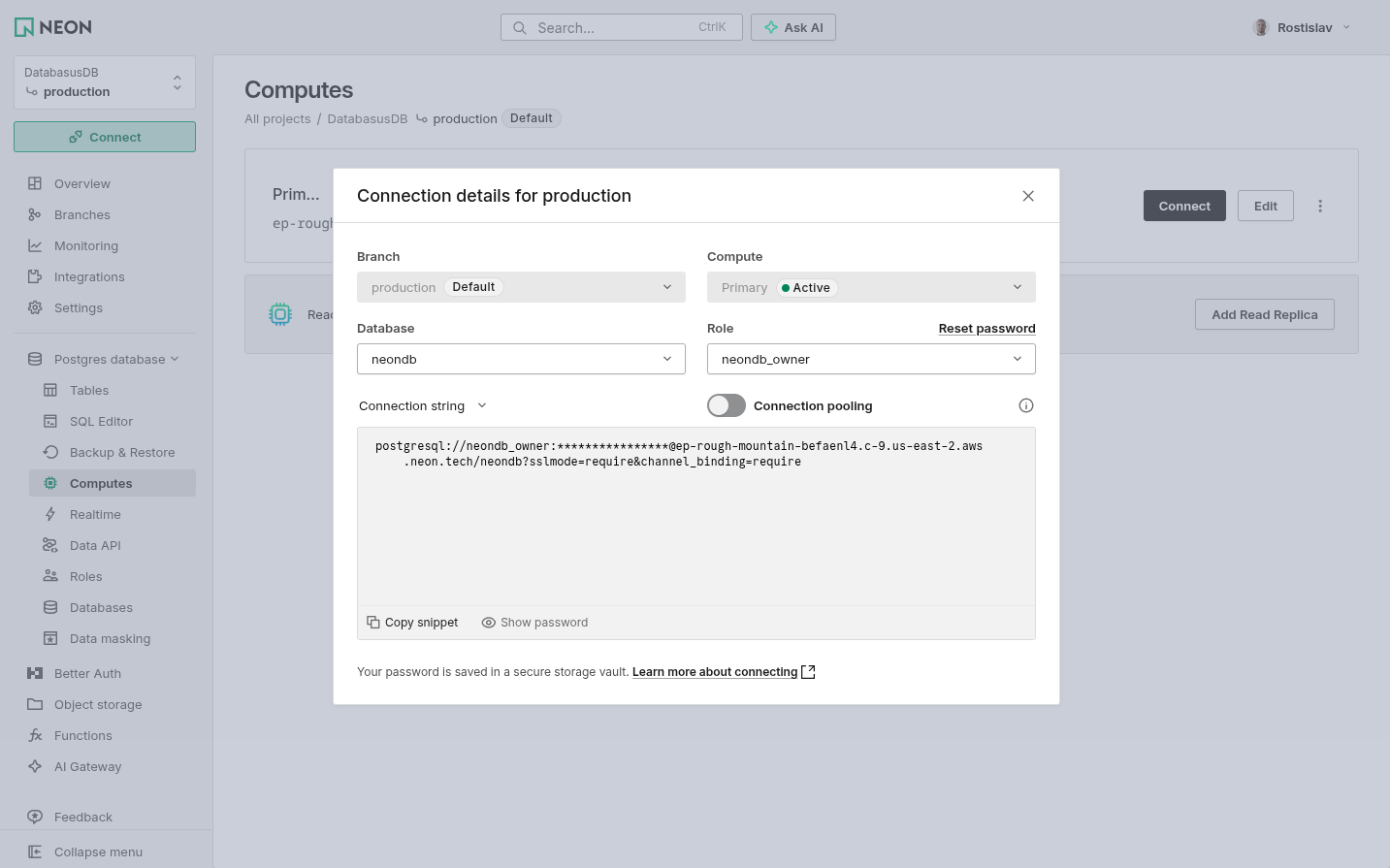
In the Connection details window, pick the branch, database and role to back up, then click Copy snippet.
Step 2. Add the Neon database to Databasus
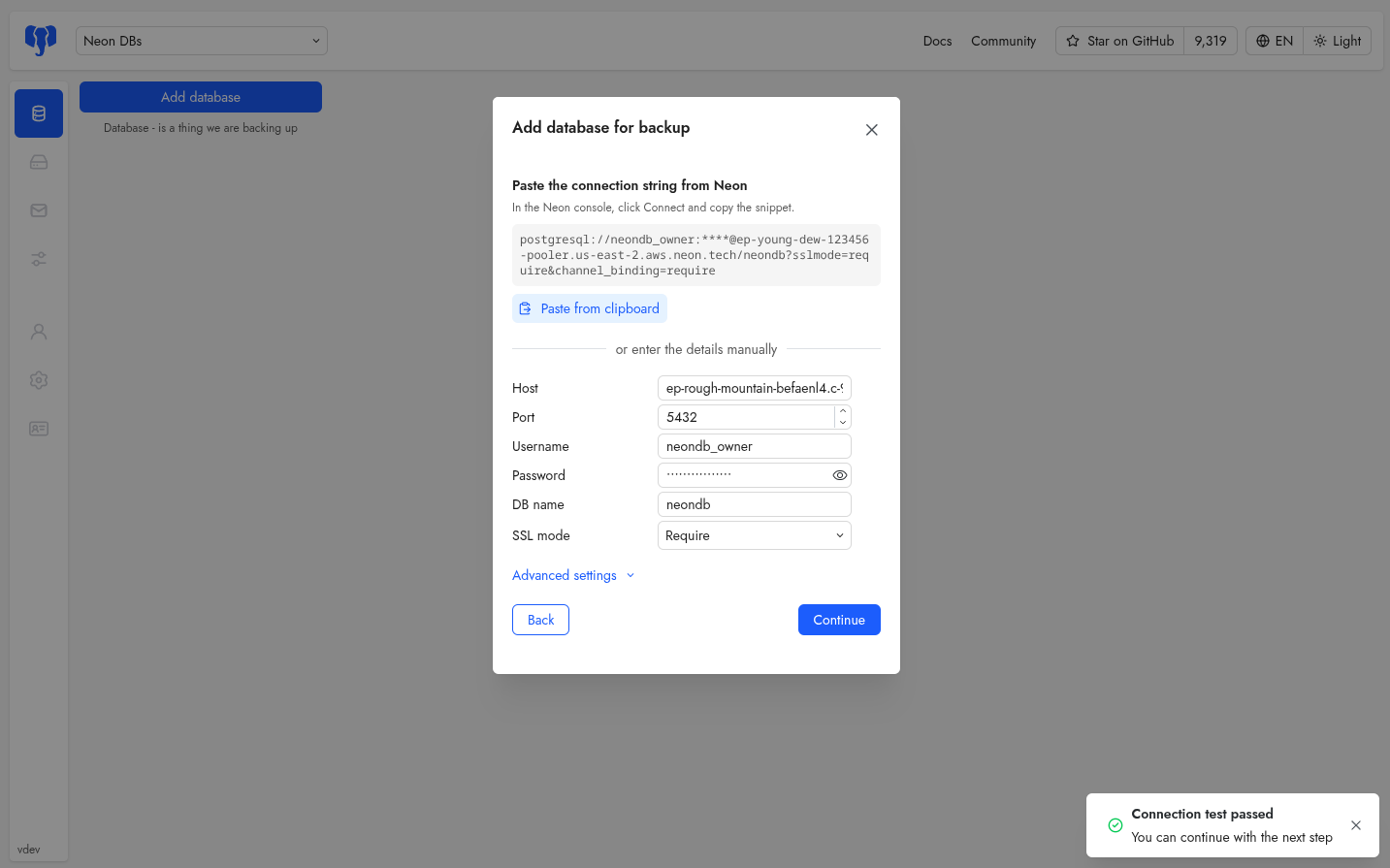
Choose Neon and paste the connection string
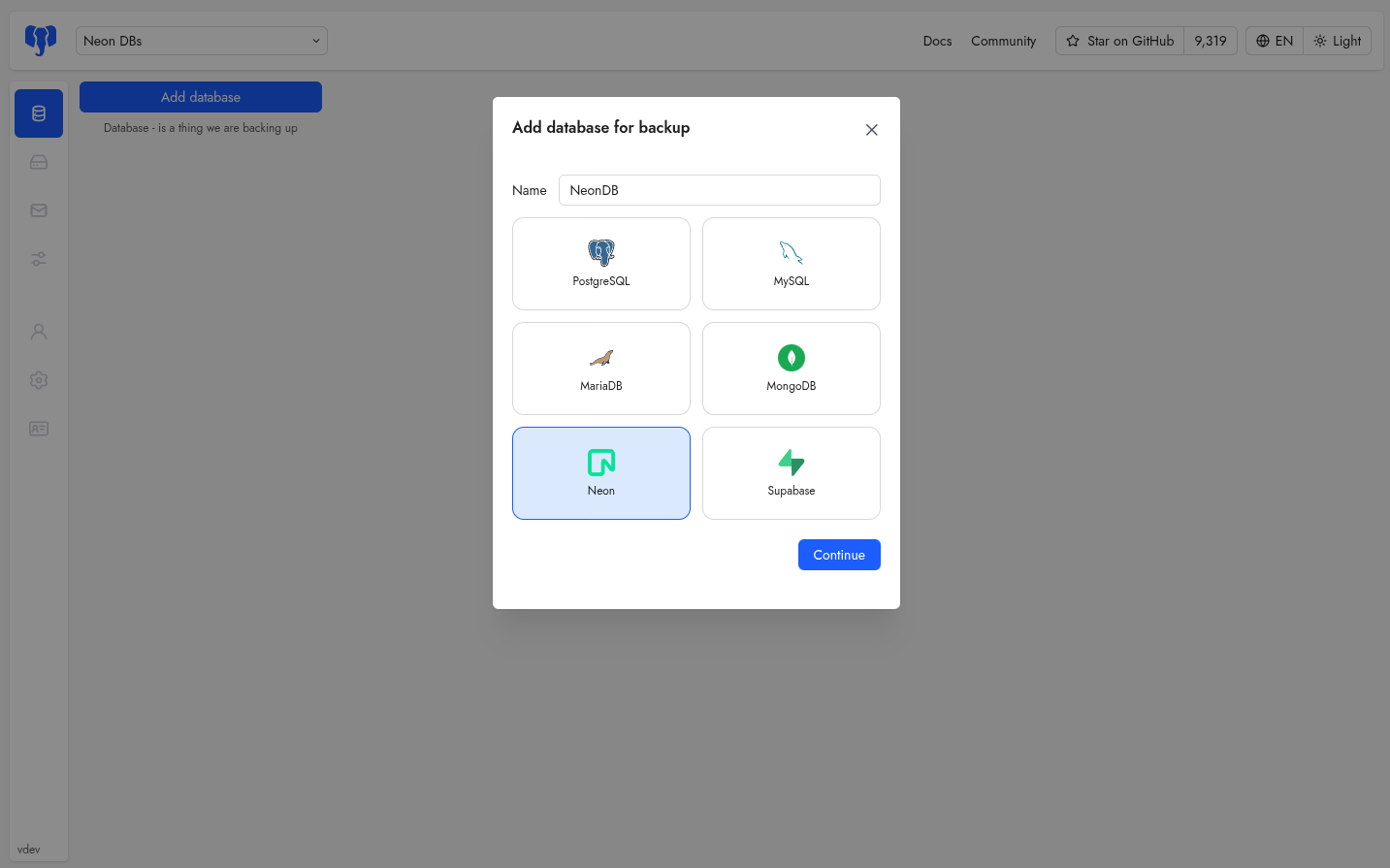
In Databasus, click Add database, give the database a name, choose Neon and click Continue.
Click Paste from clipboard. Databasus reads the connection string you copied in Neon and fills in the host, port, username, password, database name and SSL mode.
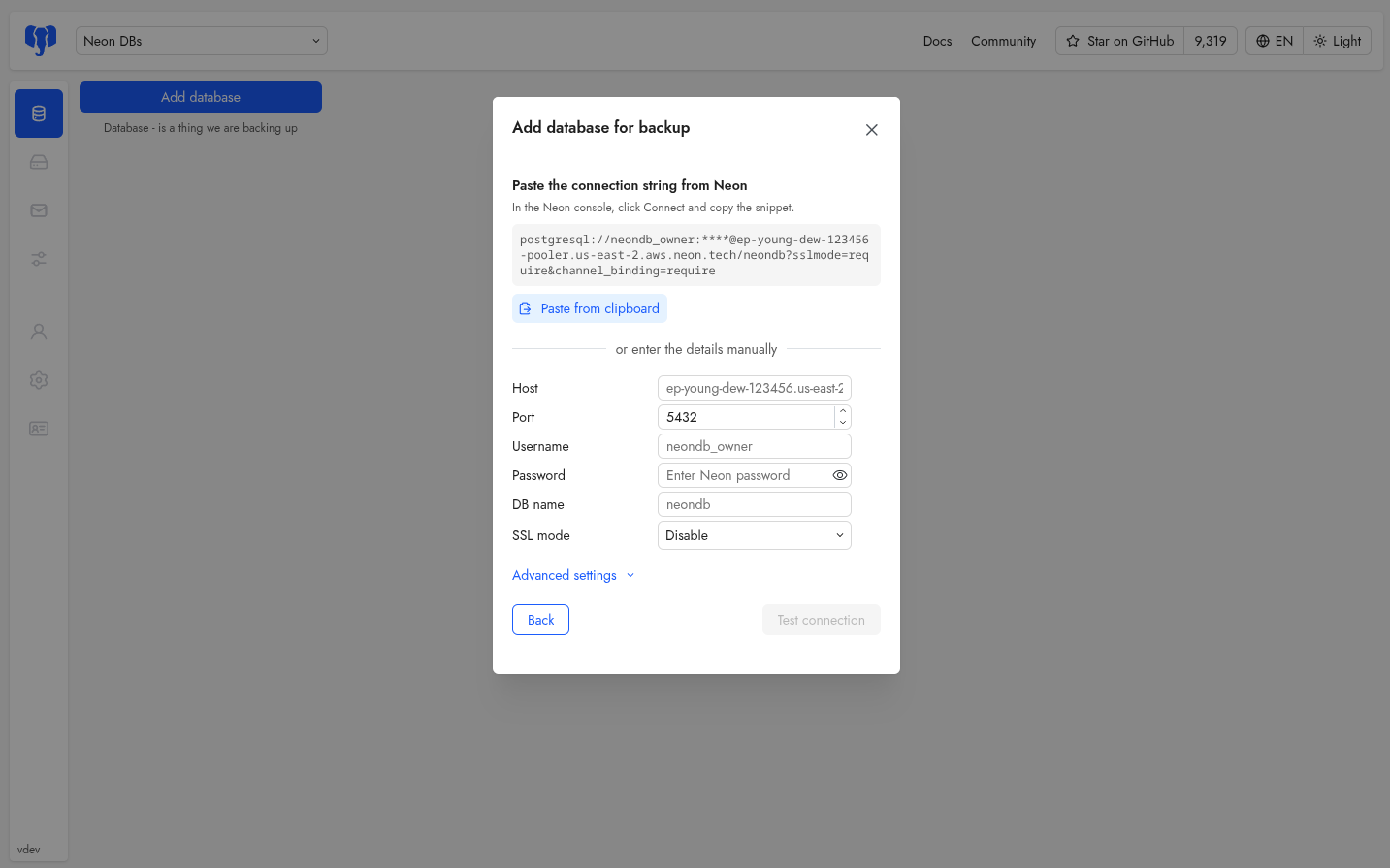
Click Test connection. When the test passes, click Continue.
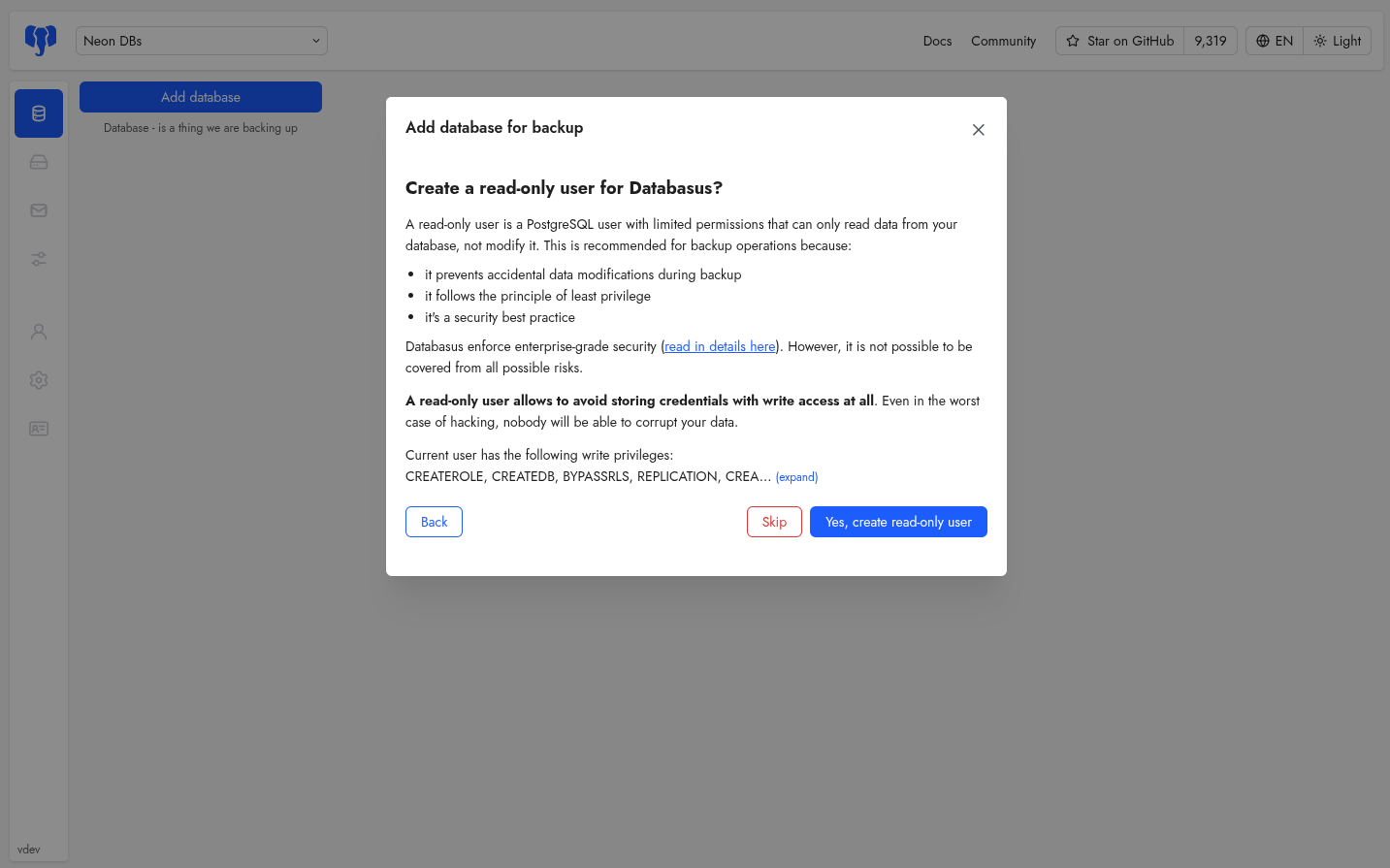
Create a read-only user
Databasus offers to create a read-only user for backups. Click Yes, create read-only user. Databasus then stores only credentials that can read your data and cannot change it.
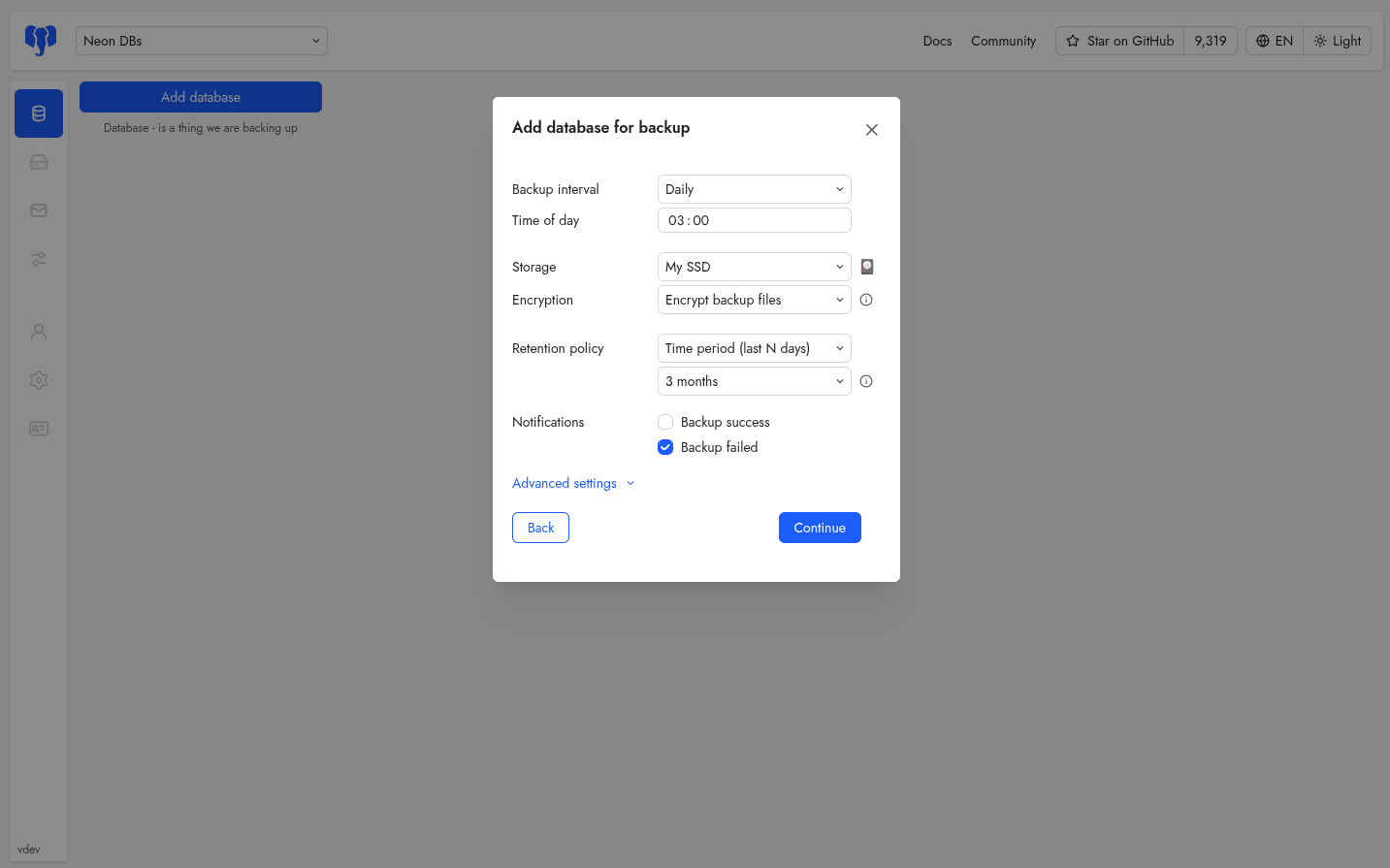
Set the backup schedule, storage and retention
Choose:
- Backup interval and time: how often Databasus makes a backup, for example daily at 03:00.
- Storage: where the backups go. You can add a storage right from this list. To keep backups at Neon as well, see how to back up to Neon Object Storage.
- Encryption: whether Databasus encrypts the backup files before it uploads them.
- Retention policy: how long to keep old backups, for example 3 months.
- Notifications: which events to report, a failed backup or a successful one too.
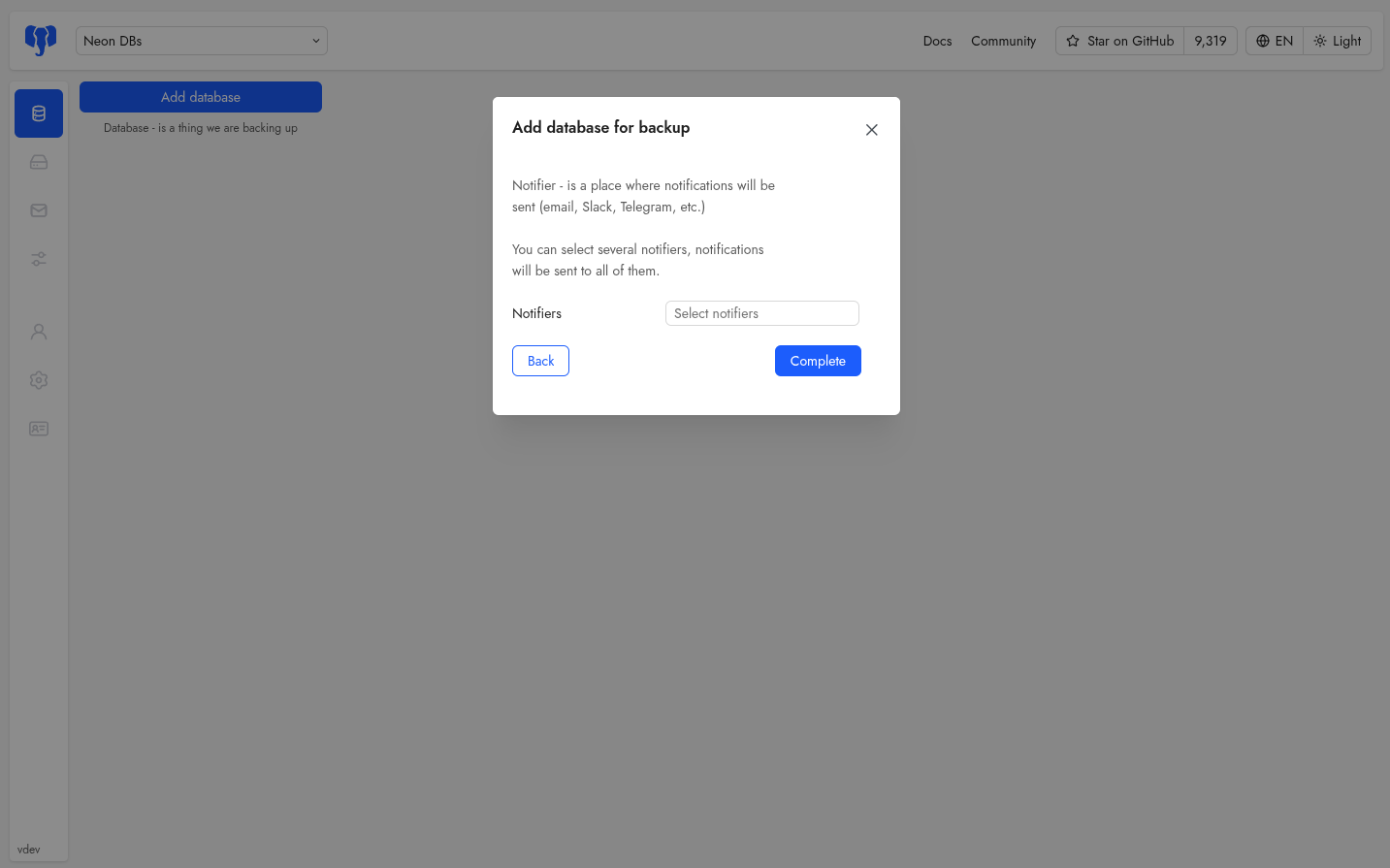
Choose notifiers
Pick the notifiers that receive these notifications, for example Slack or Microsoft Teams. You can pick several, or none and add them later. Click Complete.
Step 3. Check the first backup
Databasus starts the first backup as soon as you click Complete. It appears on the Backups tab with its size and duration. The next backups follow the schedule, and Make backup right now starts one at any time.
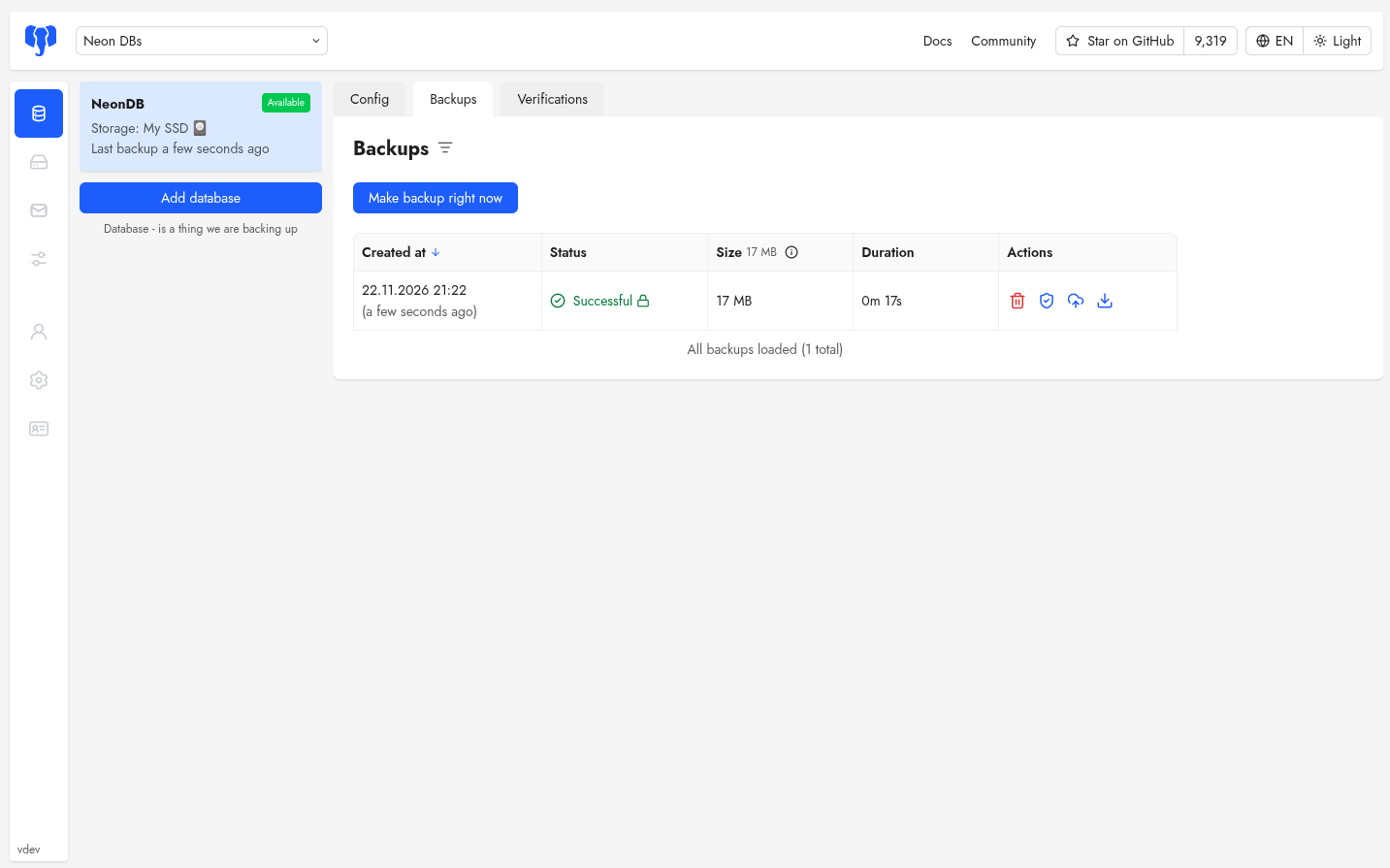
A successful backup is not yet a proven restore. To check that each backup really restores, set up restore verification.
How to restore a Neon backup
Click the restore icon (a cloud with an arrow) next to the backup. Copy the connection string of the target database in the Neon console the same way as in step 1, click Paste from clipboard and then Restore to this DB.
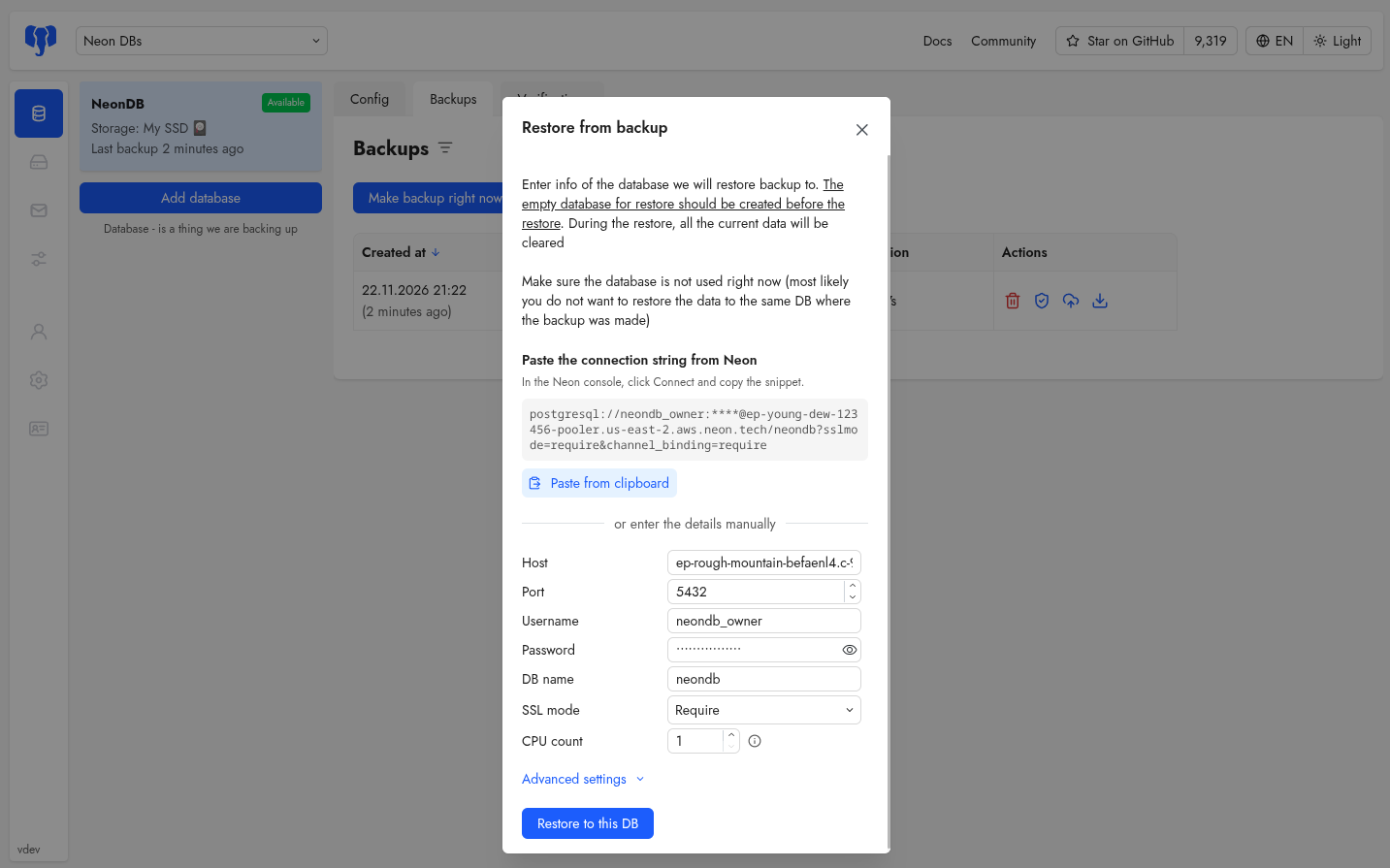
Databasus clears the target database before the restore. The target can be:
- a new database in the same Neon project
- a database on a Neon branch
- an existing database, including the source itself
The safest choice is a new Neon branch. You check the restored data there, and the production database stays untouched until you decide to switch.
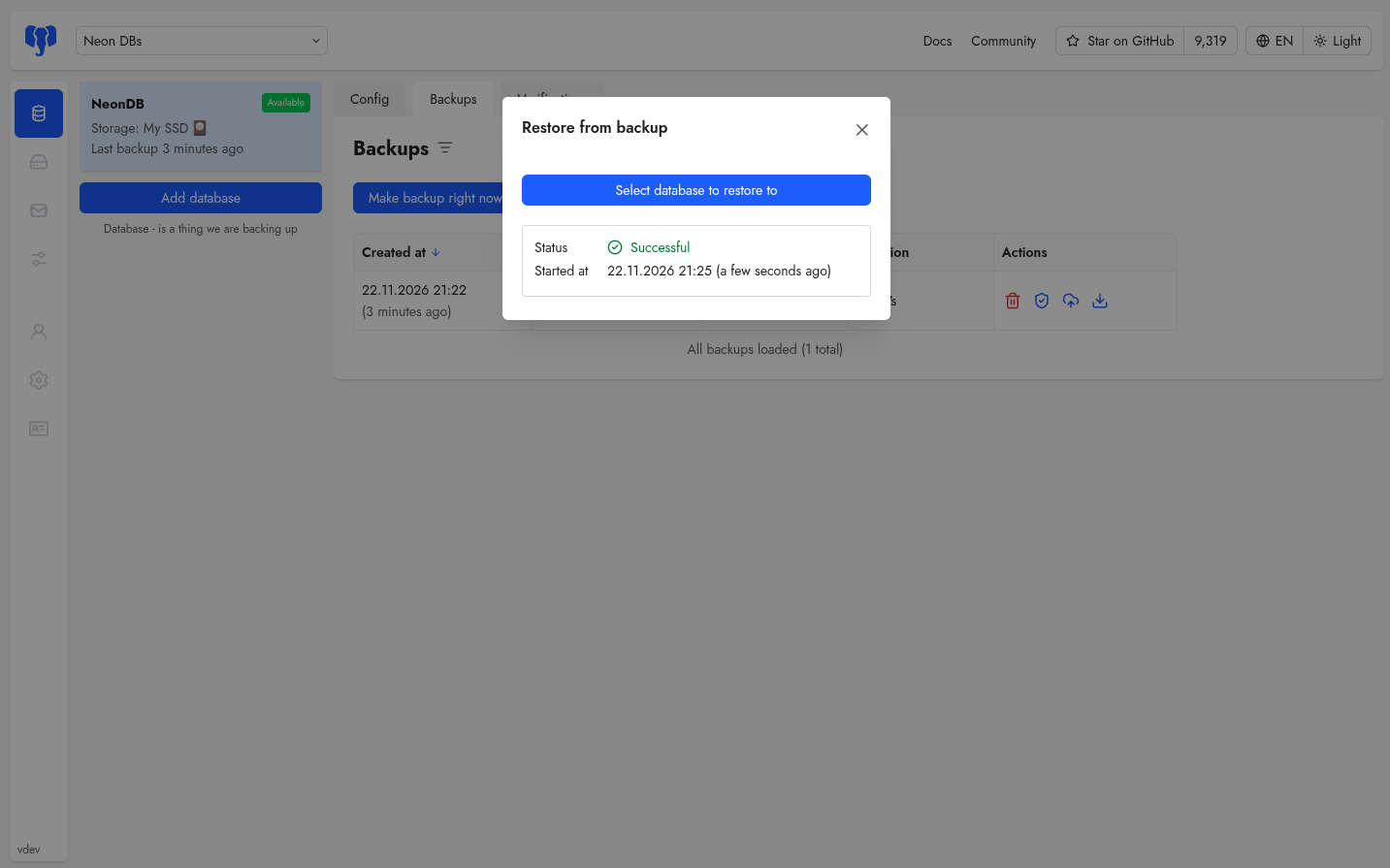
When the restore finishes, its status turns Successful.
Will health checks keep my Neon compute awake?
Not by default. Neon puts a compute to sleep when nobody is connected and does not bill it while it sleeps. A health check connects every minute, which would keep the compute awake and billed around the clock. So Databasus switches health checks off for Neon databases. If you turn them on, Databasus asks you to confirm first. A scheduled backup wakes the compute only while it runs, and then Neon puts it back to sleep.
Backing up Supabase as well? See how to backup Supabase.